Google Play Console Update: Finding Your App Signing Keys Has Moved
If you're trying to retrieve your Android app signing keys from Google Play Console, you may notice that Google has recently updated the navigation path.
For years, developers accessed app signing information through the following location:
Old Path
Play Console → Your App → Test and Release → App Integrity → Play App Signing
This section provided access to important information such as:
App signing certificate
Upload certificate
SHA-1 fingerprint
SHA-256 fingerprint
Digital Asset Links JSON
Other Play App Signing details
What's Changed?
Google has reorganized parts of the Play Console interface, and the App Signing information is no longer located under the previous menu structure.
New Path
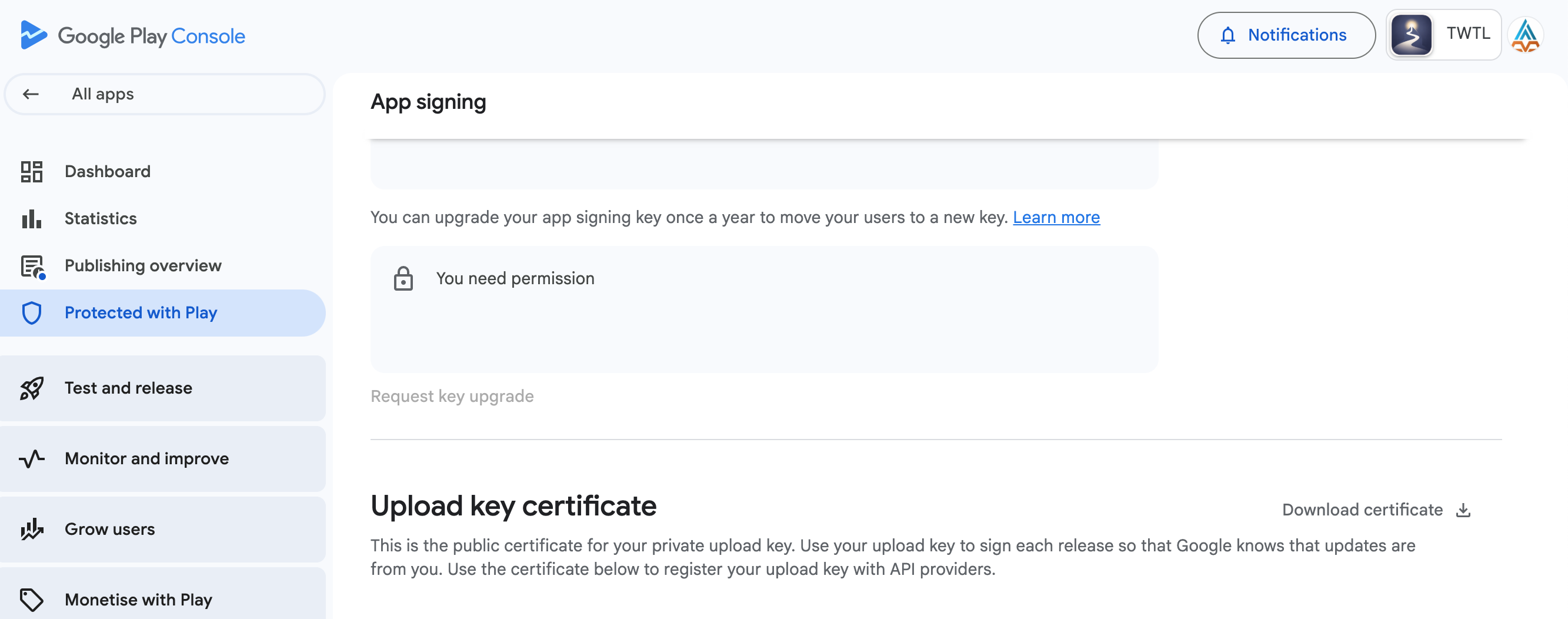
Play Console → Your App → Protect with play → Play Store Protection
→ Manage Play App Signing
You need to expand the Play Store Protection and click on the Manage Play App Signing
This section provided access to important information such as:
App signing certificate
Upload certificate
SHA-1 fingerprint
SHA-256 fingerprint
Digital Asset Links JSON
Other Play App Signing details
Why This Matters
Many Android developers rely on these certificates and fingerprints when configuring services such as:
Firebase Authentication
Google Sign-In
Google Maps API
OAuth clients
App Links and Deep Links
Third-party SDK integrations
If you're following older tutorials or documentation, you may find references to the old location, which can cause confusion when trying to locate your app signing credentials.
Recommendation
When updating your internal documentation, developer guides, or onboarding materials, replace references to the old path with the new Google Play Console navigation path to help your team quickly find the required signing certificates.
As Google continues to evolve the Play Console experience, it's a good idea to periodically review navigation changes and update your documentation accordingly.
Old Path
Play Console → Your App → Test and Release → App Integrity → Play App Signing
New Path
Play Console → Your App → Protect with play → Play Store Protection
→ Manage Play App Signing